
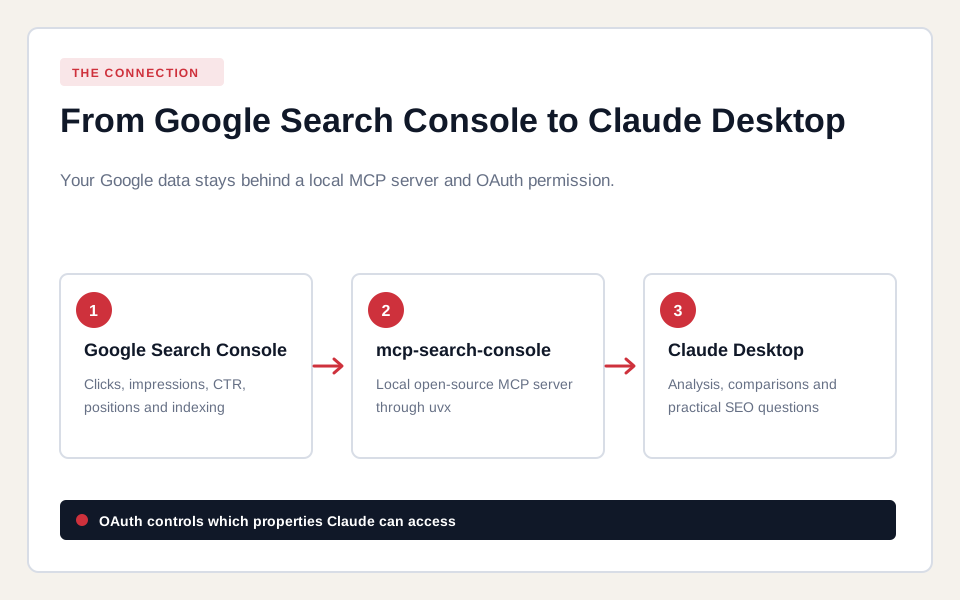
What exactly connects Google Search Console to Claude?
You connect the official Google Search Console API to Claude Desktop through the local open-source mcp-search-console server. Claude then receives tools for properties, search performance, URL inspection and sitemaps within the permissions of your Google account.
The MCP server runs locally through uvx. Google provides the data and OAuth authorization, Claude Desktop starts the local process, and the third-party package translates questions into API calls. It is not official Google or Anthropic software, so review the source and current release notes before granting access.
What do you need before starting?
You need Claude Desktop, access to at least one Search Console property, a Google Cloud account and about 25 to 40 minutes. The recommended uvx route does not require a separate Node.js or Python installation.
| Requirement | Check |
|---|---|
| Claude Desktop | Install the current desktop app from claude.ai/download. |
| Search Console access | Open Search Console and confirm that the target property is visible. |
| Google Cloud project | You must be able to enable APIs and create OAuth clients. |
| Permanent private folder | Keep the OAuth JSON file out of GitHub, shared links and public project folders. |
| Terminal | Use PowerShell on Windows or Terminal on macOS. |
Step 1: how do you create a Google Cloud project?
Open Google Cloud Console, click the current project name at the top and select New project. Give the project a recognizable name, such as GSC MCP Claude, click Create and select the new project.
- Click the project selector at the top.
- Click New project.
- Enter a project name and choose your organization when applicable.
- Click Create.
- Open the selector again and select the new project.
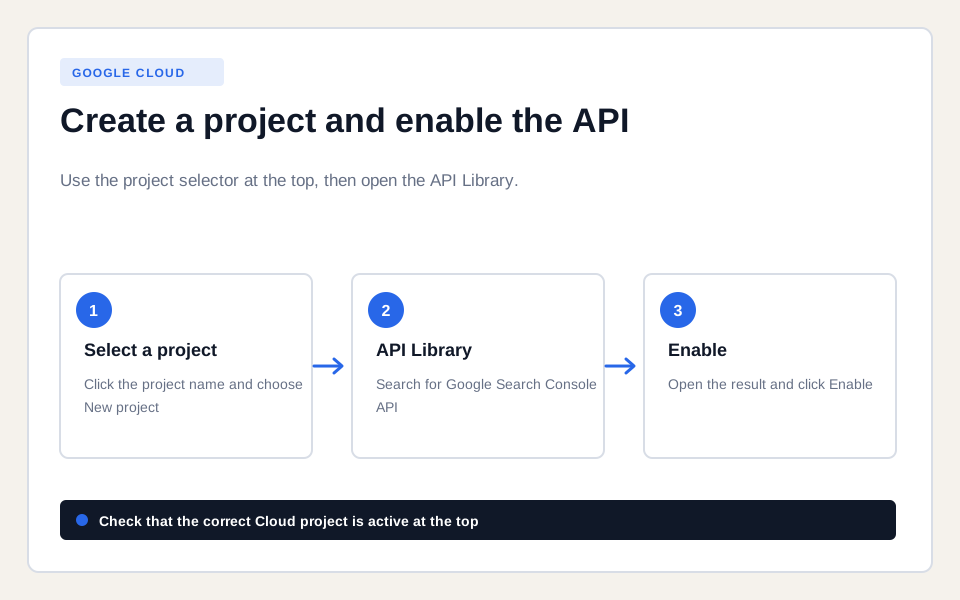
Click path: Google Cloud steps to create a project and enable the Search Console API
Step 2: how do you enable the Search Console API?
Open APIs and services, click Library, search for Google Search Console API and click Enable. Google requires the relevant API to be active before an OAuth client can request data.
- Click the menu in the top-left corner.
- Select APIs and services, then Library.
- Enter
Google Search Console APIin the search field. - Open that exact result.
- Click the blue Enable button.
Keep the correct project selected at the top. The official Search Console API prerequisites confirm that the API must be enabled in the same Cloud project.
Step 3: how do you configure Google Auth Platform?
Open Google Auth Platform and click Get started if the project has not been configured. Enter the app name, support email, audience and contact email, then finish the setup.
- Open the menu and click Google Auth Platform.
- Click Get started.
- Use a name such as
GSC MCP Claude. - Choose a support email that you control.
- Select Internal for one Workspace organization or External for a personal Google account.
- Enter your contact email, accept the user data policy and click Create.
- If the external app is in testing, open Audience and add your Google account as a test user.
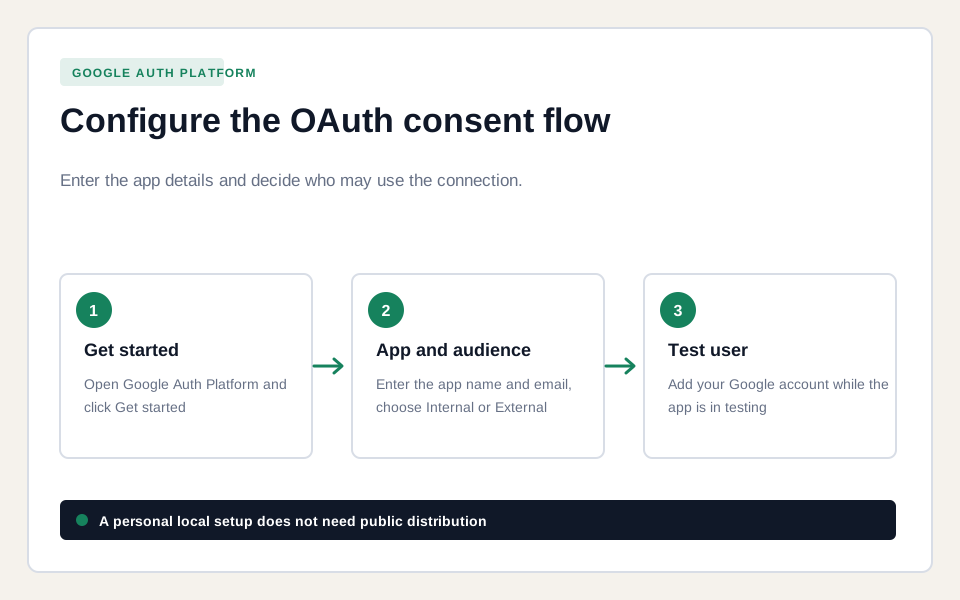
Click path: Google Auth Platform steps for app information, audience and test user
You do not need to publish a public app for a personal local setup. Labels may vary slightly by account, but Branding, Audience, Data Access and Clients are the main sections in the current Google Auth Platform.
Step 4: how do you create and download the OAuth desktop client?
Open Clients in Google Auth Platform, click Create client, choose Desktop app, name the client and download its JSON file. A desktop client is the correct OAuth client type for a local application such as this MCP server.
- Click Clients in the left navigation.
- Click Create client.
- Choose Desktop app as the application type.
- Enter a name such as
Claude Desktop GSC. - Click Create.
- Click Download JSON for the new client.
- Move the file to a permanent folder, for example
C:/Users/YOUR_NAME/Documents/gsc-mcp/client_secret.json.
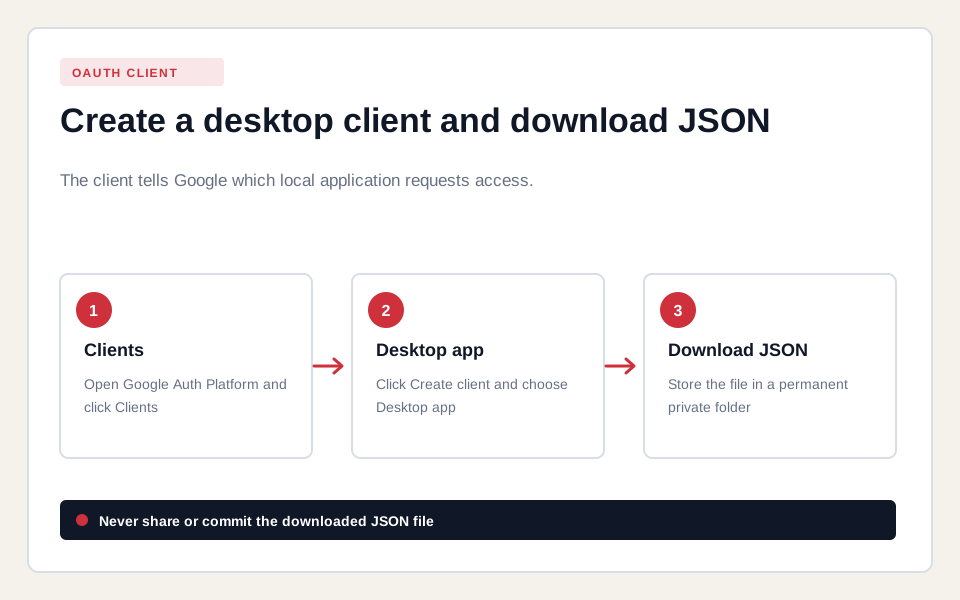
Click path: Creating an OAuth desktop client and downloading the JSON file
Step 5: how do you install uv and find uvx?
Install uv with the official Astral installer and then find the complete path to uvx. uvx retrieves and runs the MCP server in an isolated environment without a separate Python installation.
Windows PowerShell
Open PowerShell and run these commands one at a time:
powershell -ExecutionPolicy ByPass -c "irm https://astral.sh/uv/install.ps1 | iex"
uv --version
Get-Command uvx | Select-Object -ExpandProperty Source
The last command usually returns a path such as C:\Users\YOUR_NAME\.local\bin\uvx.exe. Copy the complete result.
macOS Terminal
Open Terminal and run these commands one at a time:
curl -LsSf https://astral.sh/uv/install.sh | sh
source $HOME/.local/bin/env
echo 'source $HOME/.local/bin/env' >> ~/.zshrc
uv --version
which uvx
Copy the complete path returned by which uvx. These commands come from the official uv installation guide.
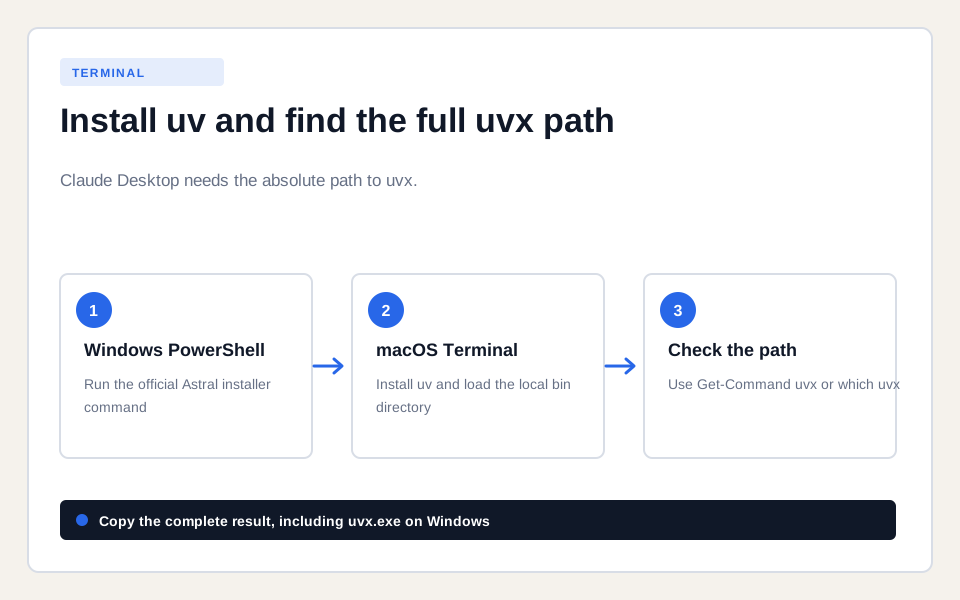
Click path: Installing uv and uvx and finding the complete path on Windows and macOS
Step 6: how do you add the MCP server to Claude Desktop?
Open Claude Desktop, click your profile, go to Settings, open Developer and click Edit Config. Add gscServer with your absolute uvx and OAuth file paths.
Newer Claude versions may also show local server status and logs under Settings, Extensions and Advanced settings. The manual server definition still lives in claude_desktop_config.json.
Windows configuration
{
  "mcpServers": {
    "gscServer": {
      "command": "C:/Users/YOUR_NAME/.local/bin/uvx.exe",
      "args": ["mcp-search-console"],
      "env": {
        "GSC_OAUTH_CLIENT_SECRETS_FILE": "C:/Users/YOUR_NAME/Documents/gsc-mcp/client_secret.json"
      }
    }
  }
}
macOS configuration
{
  "mcpServers": {
    "gscServer": {
      "command": "/Users/YOUR_NAME/.local/bin/uvx",
      "args": ["mcp-search-console"],
      "env": {
        "GSC_OAUTH_CLIENT_SECRETS_FILE": "/Users/YOUR_NAME/Documents/gsc-mcp/client_secret.json"
      }
    }
  }
}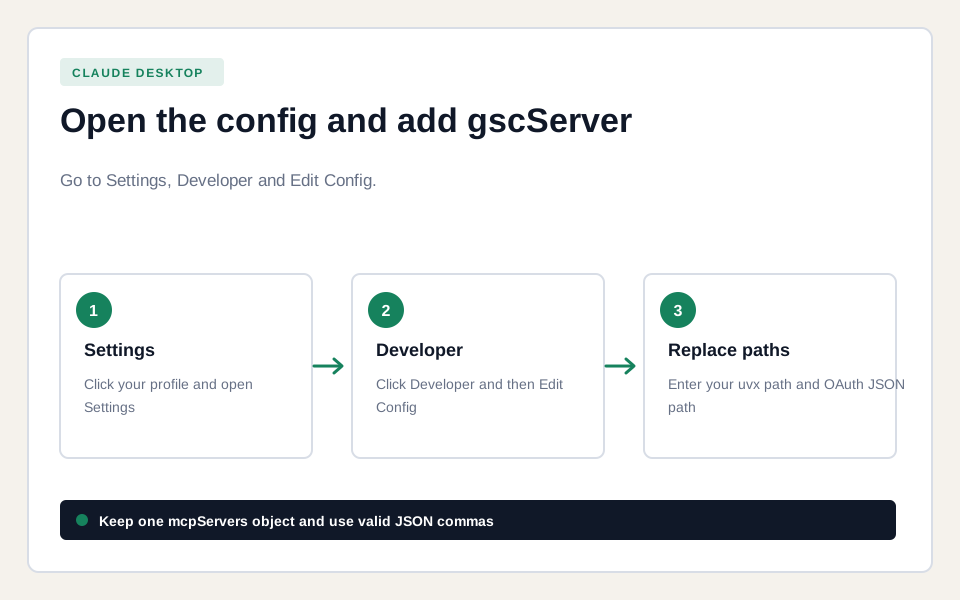
Click path: Opening Claude Desktop settings and adding gscServer to the configuration
Step 7: how do you restart and authorize Claude?
Save the configuration, fully quit Claude Desktop and reopen it. Start a new chat and ask for your Search Console properties, which should trigger the Google OAuth flow in your browser.
- Save the file as JSON, not as a text file.
- Quit Claude completely. Closing only the window is not enough.
- Reopen Claude Desktop.
- Enter
List my GSC properties. - Choose the Google account with Search Console access.
- Check the project and app name, then click Continue or Allow.
- Return to Claude and approve the tool call if Claude asks.
If an external app in testing blocks access, add the Google account under Google Auth Platform and Audience as a test user.
Step 8: how do you test the connection?
Ask for the available properties first and then call get_capabilities. If your properties and the server status appear, the local server, OAuth permission and Search Console API are working together.
List all Google Search Console properties I can access.

Call get_capabilities and show the authentication status and available GSC tools.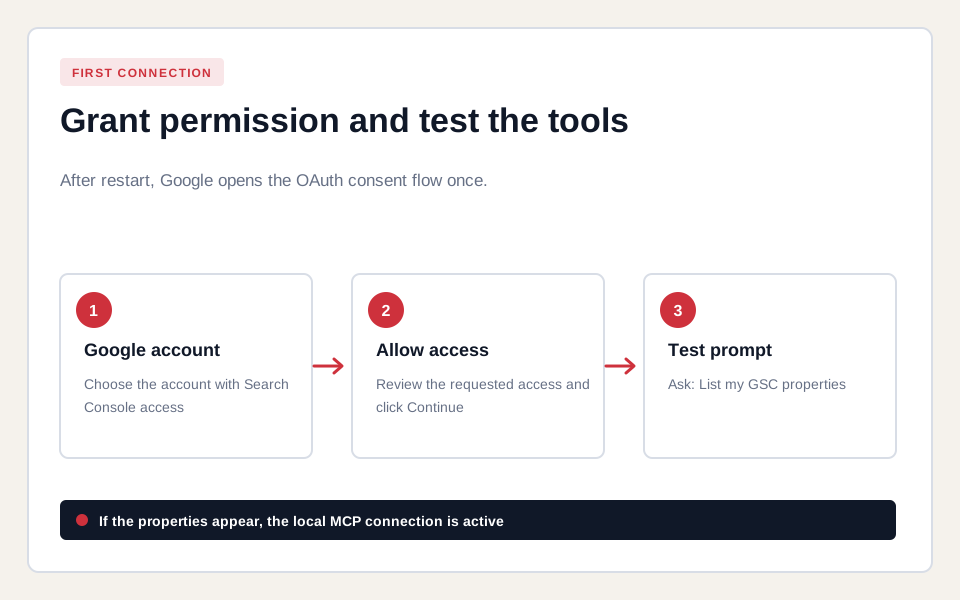
Click path: Granting Google OAuth permission and testing the Search Console MCP server in Claude
What Search Console questions can you ask Claude next?
You can ask Claude to compare performance, find CTR opportunities, analyze page-query pairs and inspect URLs. Always specify the property, period, market, device filter and desired output.
| Goal | Example prompt |
|---|---|
| Quick wins | Show queries with at least 1,000 impressions, position 4 to 15 and CTR below 2 percent in the last 28 days. Group them by landing page. |
| Period comparison | Compare the last 28 complete days with the preceding 28 days. Show winners and losers for clicks, impressions, CTR and position. |
| Content opportunities | Find queries in positions 11 to 20 with high impressions. Check whether an existing page satisfies the intent before recommending a new page. |
| CTR improvement | Find pages with stable positions but declining CTR. Suggest possible title and snippet issues without promising results. |
| Indexing | Inspect these ten URLs and group issues by cause, impact and next check. |
| Cannibalization | Find queries receiving impressions for multiple URLs. Show the data before recommending consolidation, repositioning or internal links. |
How do you avoid incorrect conclusions from GSC data?
Compare complete periods, separate branded from non-branded queries and treat average position as an aggregated metric. Claude can summarize patterns quickly, but the model does not remove Search Console data limitations.
- Avoid the most recent two to three days when you only want confirmed data.
- Optionally set
GSC_DATA_STATEtofinalfor confirmed data with additional delay. - Compare equal weekdays and account for seasonality, campaigns and migrations.
- Check page, query, country, device and search type separately.
- Ask Claude to show raw totals next to percentage changes.
- Verify important conclusions in Search Console.
Is the Google Search Console MCP connection secure?
The connection can be used responsibly when you review the source, protect local paths and authorize only necessary accounts. OAuth does not share your Google password with the MCP server, but the local token can access data within the granted scopes.
- Use a separate Google Cloud project for this connection.
- Keep OAuth JSON and tokens out of repositories and shared folders.
- Authorize an account that only has access to the required properties.
- Review external package updates before using them.
- Keep
GSC_ALLOW_DESTRUCTIVEset tofalse. - Revoke access from your Google account when you stop using the connection.
When should you choose OAuth or a service account?
Choose OAuth for personal, interactive use in Claude Desktop. Choose a service account for a managed team or automation environment where you intentionally add the technical identity as a Search Console user.
| Situation | Best option | Reason |
|---|---|---|
| Your own analyses in Claude Desktop | OAuth | Sign in with your existing Google account and properties. |
| Persistent automation or shared server | Service account | Separate technical identity without a personal browser login. |
| Multiple client accounts | OAuth or separate service accounts | Keep access and responsibility traceable per environment. |
How do you fix common installation errors?
Most errors come from an incorrect absolute path, invalid JSON, a disabled API or a Claude process that was not fully restarted. Check the message in this order.
| Message or symptom | Fix |
|---|---|
spawn uvx ENOENT | Use the complete path returned by Get-Command uvx or which uvx. |
| Credentials file not found | Use an absolute path and check the file name, extension and folder. |
| No tools in Claude | Check JSON commas, fully quit Claude and then ask for get_capabilities. |
| Access blocked | Check the audience, test users and Google account used during sign-in. |
| Property missing | Verify that the Google account has access to that URL-prefix or domain property in Search Console. |
| Fresh installation crashes | Let uvx retrieve the current package release. Version 0.3.3 fixes the MCP SDK 2.0 incompatibility. |
Does the same configuration work in Claude Code?
No. Claude Code uses a different MCP configuration from Claude Desktop. This guide intentionally targets claude_desktop_config.json; use the current Claude Code MCP commands and configuration from the official Claude Code documentation.
Claude Code can be useful when you want to combine Search Console data with files, code and a local website. First make sure the data access, property selection and analysis method work correctly in Claude Desktop.
Which sources were checked for this setup?
The click path and commands were checked on August 2, 2026 against primary documentation and the maintained MCP server repository.